In diesem Dokument
Setting up a tablet
This guide is for the owner or manager setting up a new tablet. It covers registering the tablet to your restaurant, the settings you choose once for each tablet, moving or retiring a tablet, and the list of paired devices in the back office.
Register the tablet
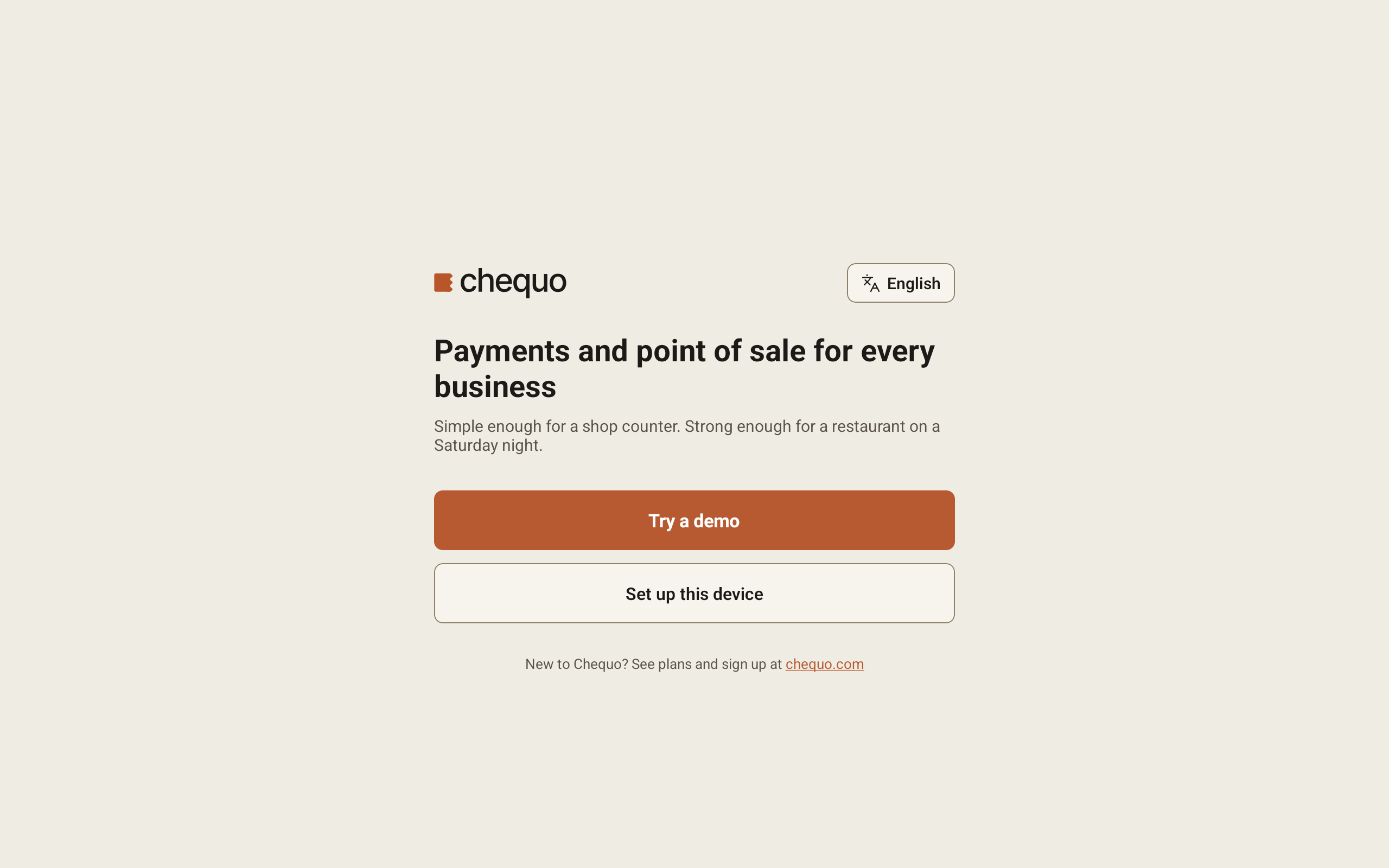
A new tablet opens on the welcome screen. You need the email and password you use for the back office.
- Tap Set up this device.
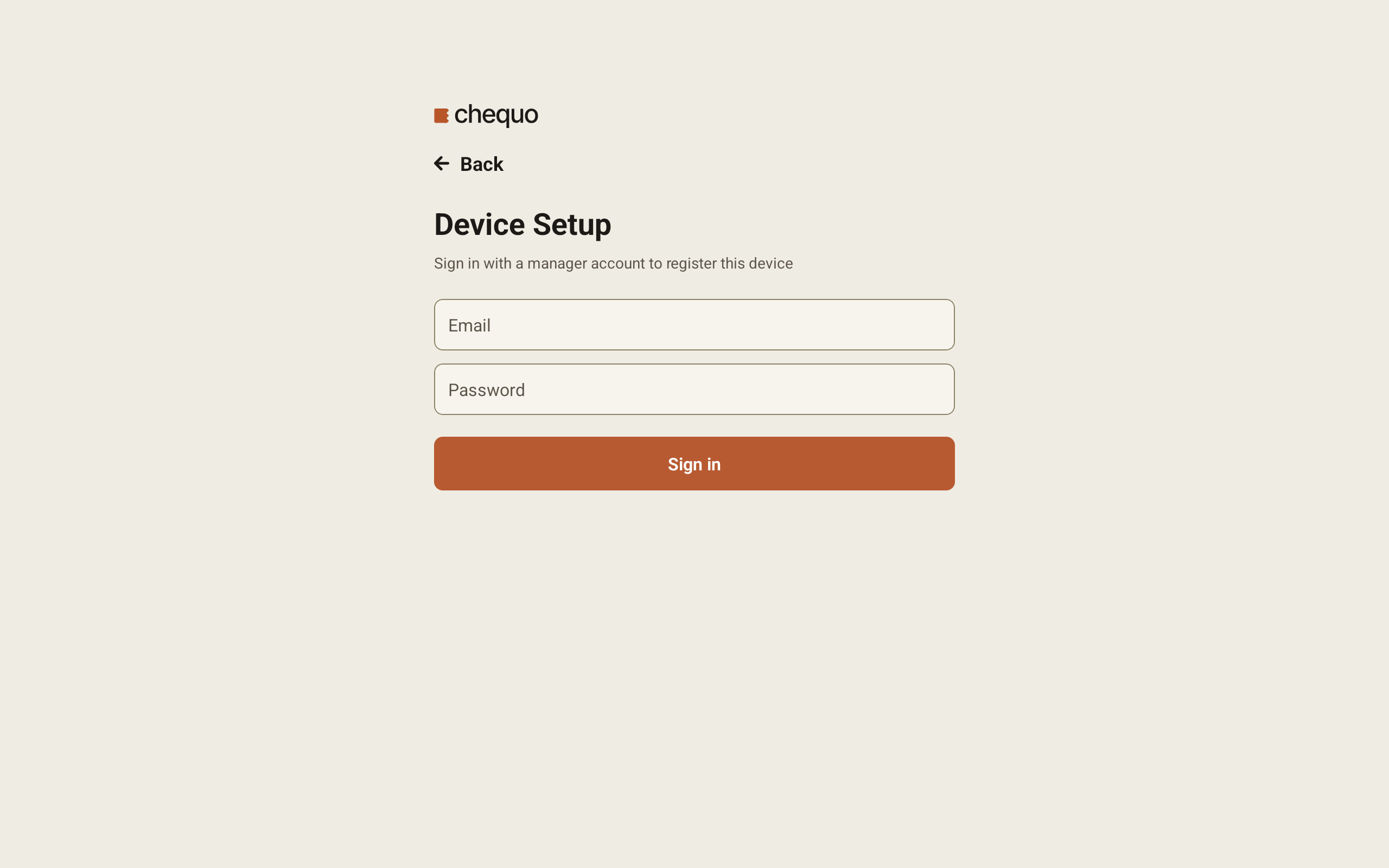
- On Device Setup, type your back-office Email and Password, then tap Sign in.
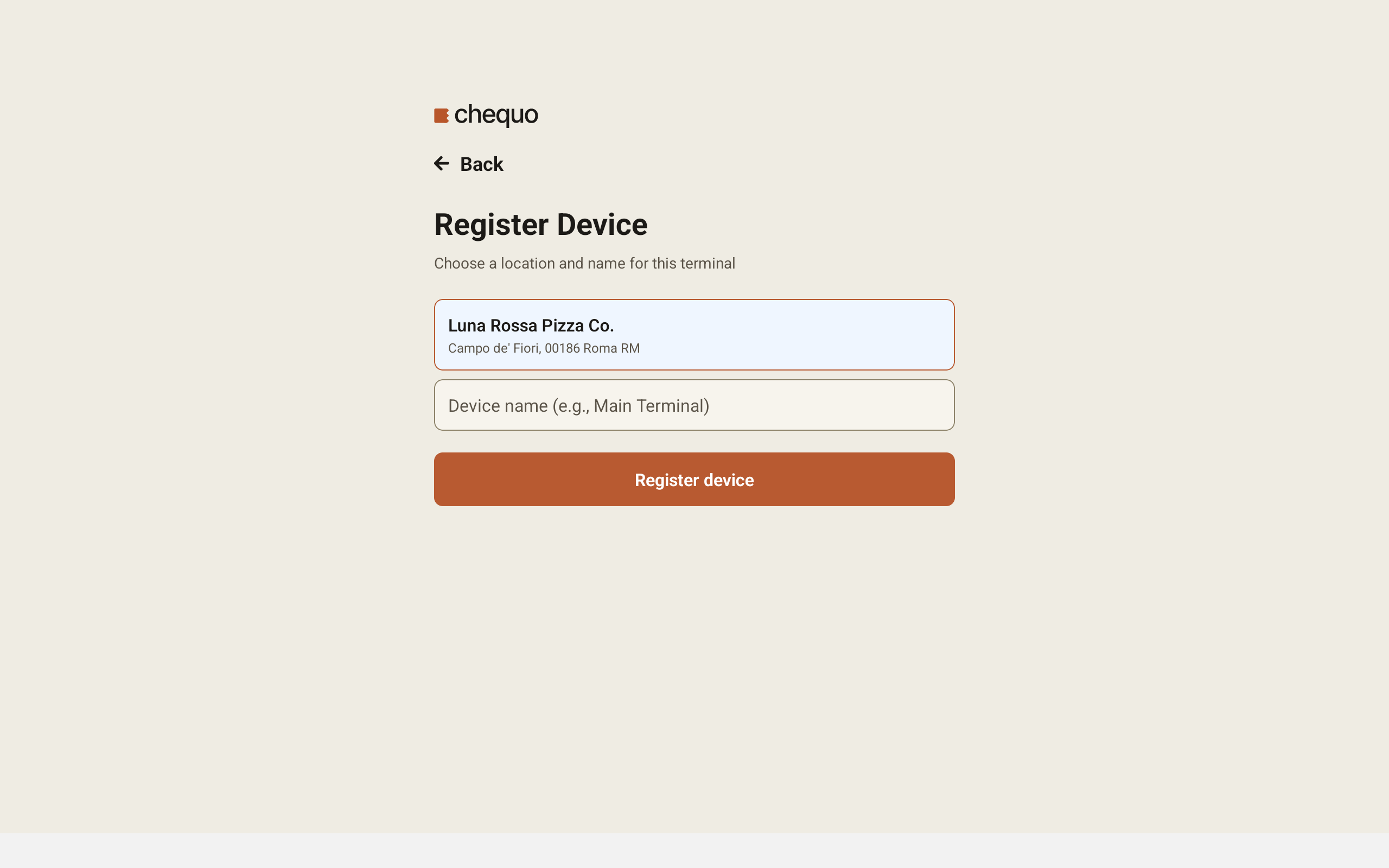
- On Register Device, tap the location this tablet belongs to. Each location shows its name and address, and the first one is selected for you.
- Type a name in Device name (e.g., Main Terminal).
- Tap Register device.
The tablet then shows the PIN screen, and your staff can sign in with their PINs. See Signing in and finding your way around.
Pick a name you would recognise on the floor, such as "Till 1" or "Bar handheld". It is the name the tablet uses for itself in offline sync, so the other tablets show it when they connect to this one, and it is the name in the back-office device list. You can change it later: open the three-dot menu, where the tablet's name sits under the staff member's name, and tap Rename.
If something goes wrong:
- Login failed: the email or password was not accepted. Check them and try again.
- Please fill in all fields: you tapped Register device without a location or a device name.
- Registration failed: the tablet could not be registered. The message under the title says why.
If you tapped Set up this device by mistake, tap Back to return to the welcome screen.
Choose this tablet's settings
Each tablet keeps its own settings. To open them, tap the three-dot menu at the top right of the Tables screen, then tap Settings. Anyone signed in on the tablet can open this screen.
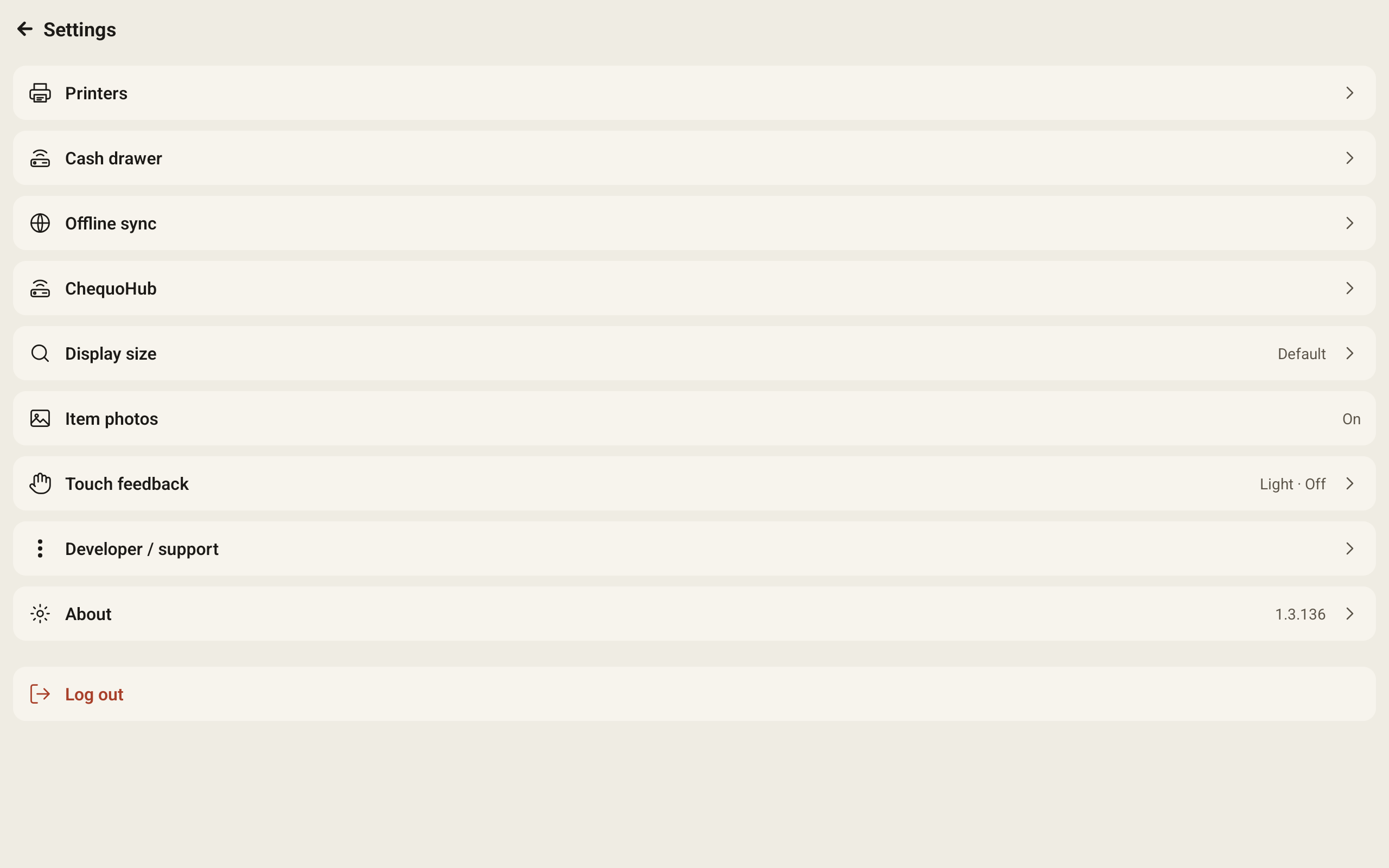
The ChequoHub row is for pairing and checking a ChequoHub. See ChequoHub and cash drawers.
Display size
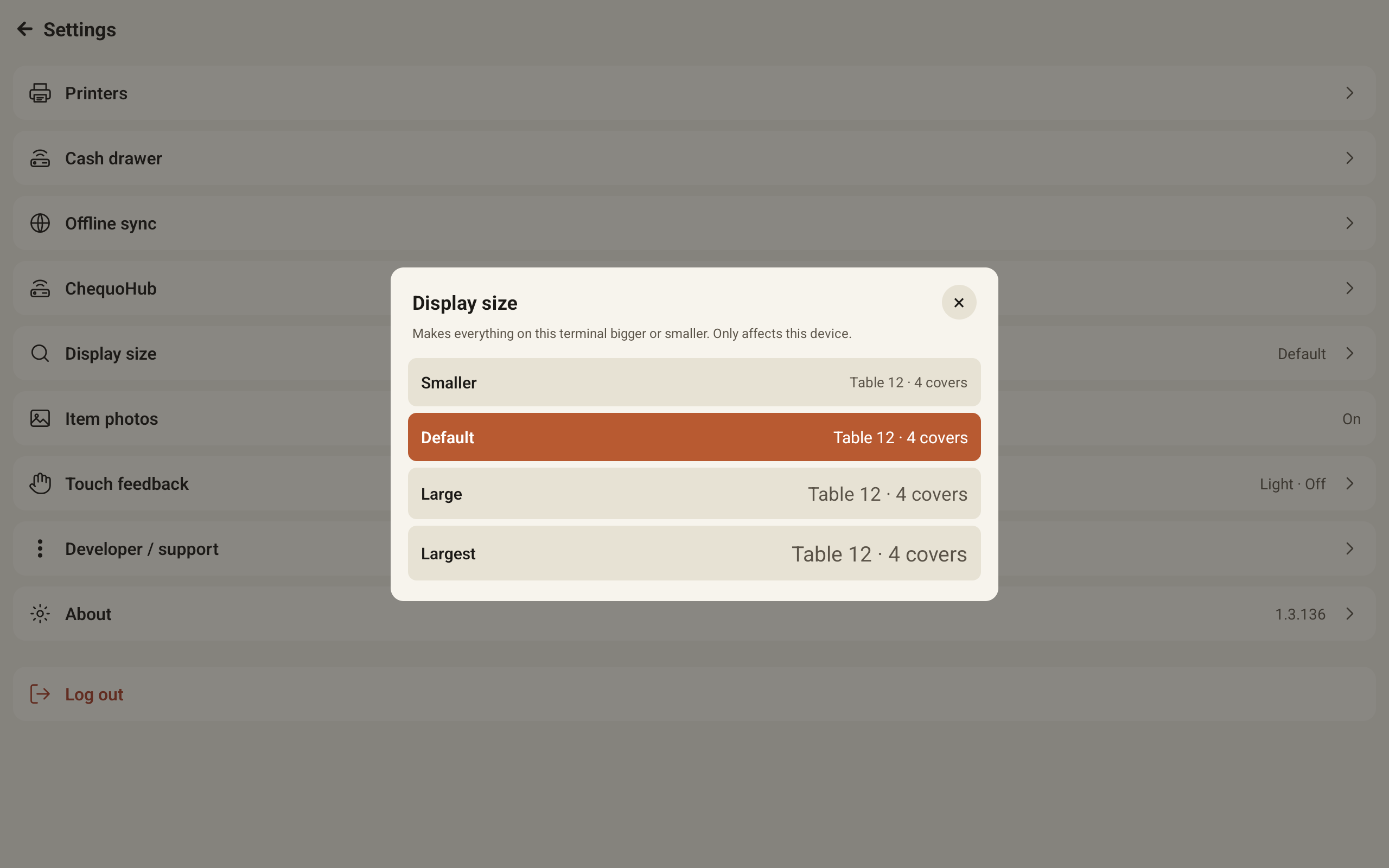
Display size makes everything on this tablet bigger or smaller. It only affects this tablet.
- Tap Display size. The current size is shown on the right of the row.
- Tap Smaller, Default, Large or Largest. Each option shows a sample line at the size it would give you.
- Tap the × in the corner to close the window.
Item photos
Tap Item photos to switch menu item photos on or off on this tablet's menu tiles. The row shows On or Off, and it changes as you tap.
Touch feedback
Tap Touch feedback to choose how the tablet responds to a tap:
- Vibration: Off, Light, Medium or Strong. Most tablets cannot vibrate.
- Click sound: Off, Quiet, Medium or Loud. The click follows the tablet's media volume.
Printers
Tap Printers to choose which receipt printer this tablet prints to. Tap a printer in the list to select it. The location's default receipt printer carries a Default chip.
To add a printer that is not in the list, see Adding a printer.
Cash drawer
Tap Cash drawer to choose which cash drawer this tablet opens. It does not have to be the drawer next to the printer this tablet uses: a tablet can print on the terrace and take change from the main counter.
- Automatic lets the app choose. The line under it names the drawer it picked.
- Tap a drawer in the list to choose it yourself. A check mark shows the current choice.
If the list is empty, no cash drawers are set up yet. See ChequoHub and cash drawers.
Offline sync
When the internet is down, one tablet takes over as the server for the others, so orders keep moving between tablets and the kitchen screen. Tap Offline sync to choose this tablet's part in that.
The coloured banner at the top says where this tablet stands: No device is syncing yet, that this tablet is the sync server (with its name), or which tablet it is connected to.
Under Should this device host?, pick one:
- Automatic: the tablets decide between themselves.
- Always this device: this tablet is the sync server.
- Never this device: this tablet never becomes the sync server.
Pick the tablet that stays plugged in.
The first time you open Offline sync on a tablet that is the sync server right now, while it is online and set to Automatic, the app asks Always use this device? Tap Always use this device to make it the permanent sync server, the same as choosing Always this device. Tap Not now to leave it on Automatic. The app asks only once on each tablet.
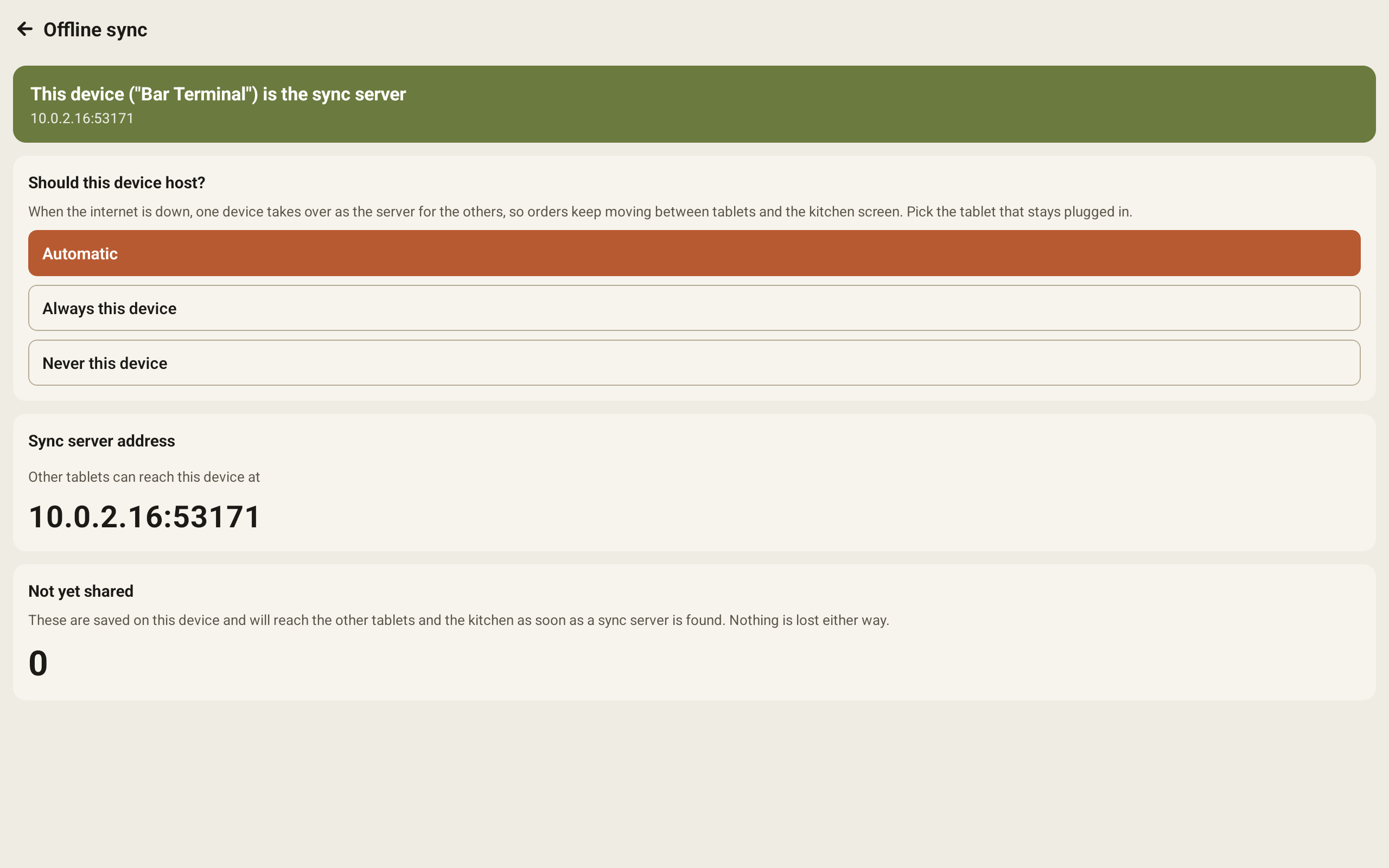
Sync server address is for when the tablets cannot find each other on their own. Leave it empty otherwise. On the sync server tablet, this section shows the address the others can reach it at. On any other tablet, type that address in the box and tap Save. While an address is set, the tablet only talks to that sync server: it does not search and it does not host. Tap Clear and search automatically to go back to finding it on its own.
Not yet shared counts the orders this tablet has saved but not yet passed to a sync server. They reach the other tablets and the kitchen as soon as one is found.
Move or retire a tablet
Both of these are at the bottom of the Settings screen. Neither works while the tablet still holds orders that have not reached the server: the app shows Orders not yet synced. Reconnect to the internet and wait for syncing to finish, then try again.
Switch location
Switch location only appears if your restaurant has more than one location.
- Tap Switch location. The current location is marked Current.
- Tap the location to move to.
- Tap Switch to confirm.
Whoever is signed in is signed out, and staff sign in with their PIN at the new location.
Log out
Log out removes the tablet from your restaurant. It is not how a waiter ends a shift.
- Tap Log out.
- The app asks Unregister this device? Tap Log out to confirm, or Cancel to keep the tablet registered.
To use the tablet again, a manager has to register it again with their email and password, as described at the top of this guide.
See your tablets in the back office
In the back office, go to Settings → Devices. The page lists every tablet, kitchen display and ChequoHub paired to the current location.
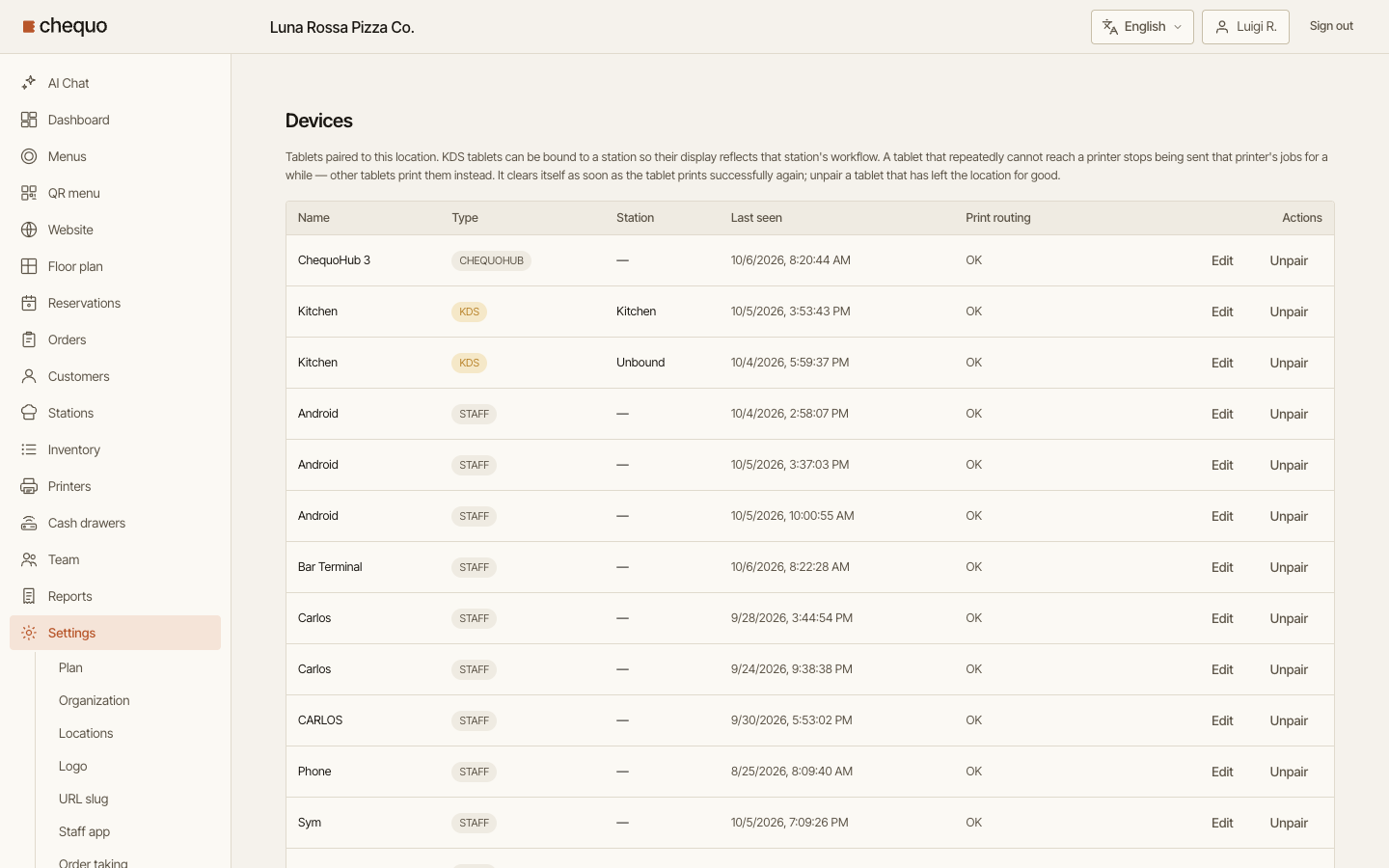
The columns are:
- Name: the name given when the tablet was registered or renamed.
- Type: STAFF for a staff app tablet, KDS for a kitchen display, CHEQUOHUB for a ChequoHub.
- Station: the station a kitchen display is bound to, or Unbound. A staff tablet or a ChequoHub shows a dash.
- Last seen: when the tablet last reached the server.
- Print routing: OK while the tablet prints normally. A tablet that keeps failing to reach a printer shows Not receiving jobs for that printer, and other tablets print those jobs instead for a while. It clears itself once the tablet prints again.
To rename a tablet, press Edit, change the Name and press Save. For a kitchen display, the Edit device window also has a Station list: pick a station, or Unbound (all stations).
To remove a tablet that has left the location for good, press Unpair. The back office asks Unpair this device? The token will no longer work. Confirm, and the tablet's registration stops working.
Staff PINs
PINs are the same length for everyone at a location: 4 digits unless you change Waiter app & KDS PIN length in the back office, under Settings → Locations, on the location's page. To give your staff their PINs, see Set up staff members.