Bu belgede
One app on a tablet or a phone
The Chequo staff app is one app. It runs on Android and iOS, on tablets and on phones, and it works the same way on all of them. This guide shows what changes between a tablet and a phone, and how the app takes on your restaurant's look.
One app everywhere
Whatever the device, you get the same staff app:
- The same sign-in: your PIN, on every device at your restaurant. See Signing in.
- The same checks. A check opened on a tablet shows on a phone, and items added on the phone show on the tablet. The devices stay in step.
- The same features: tables, orders, sending to the kitchen and payments.
Each device is set up once for your restaurant before anyone signs in on it. See Setting up a tablet; a phone is set up the same way.
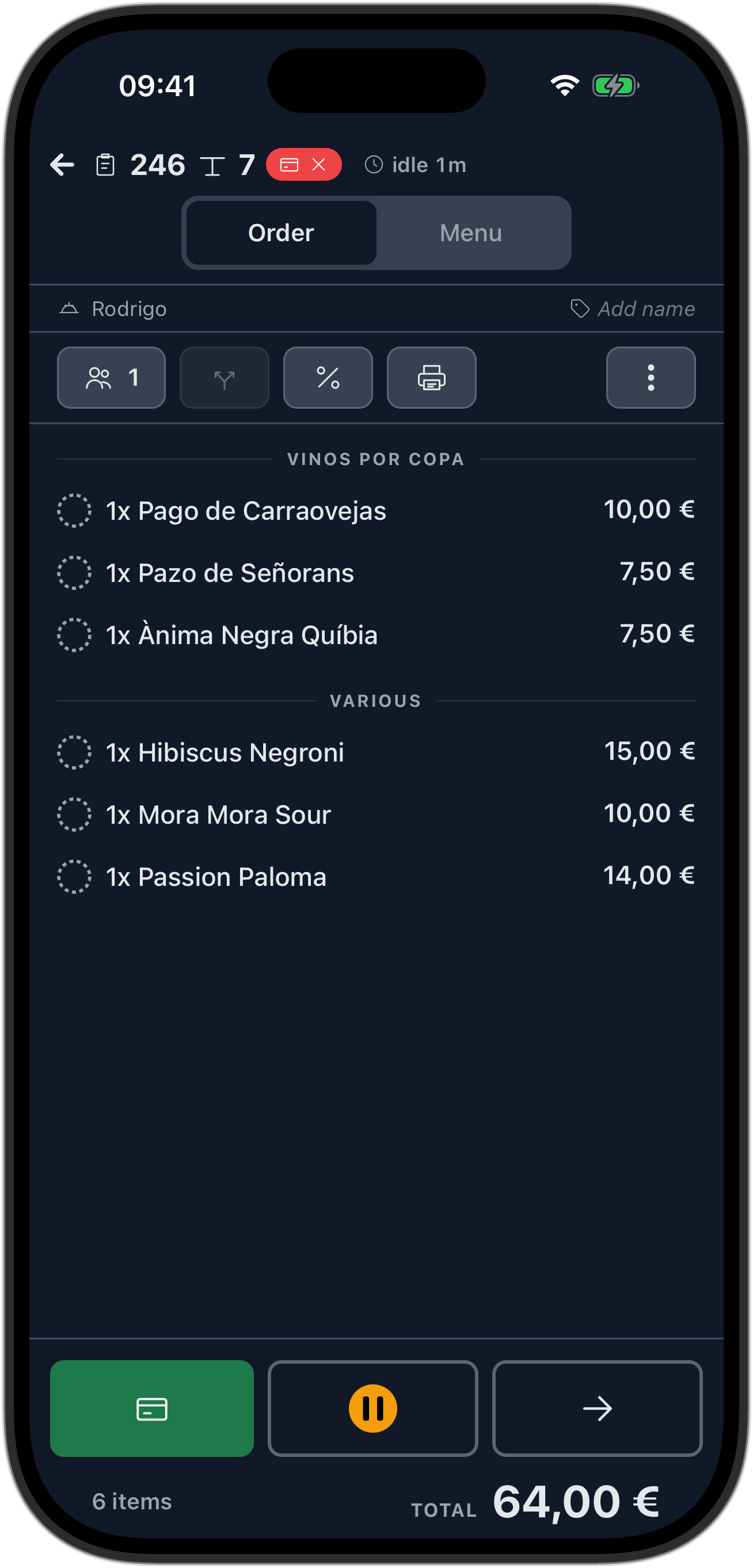
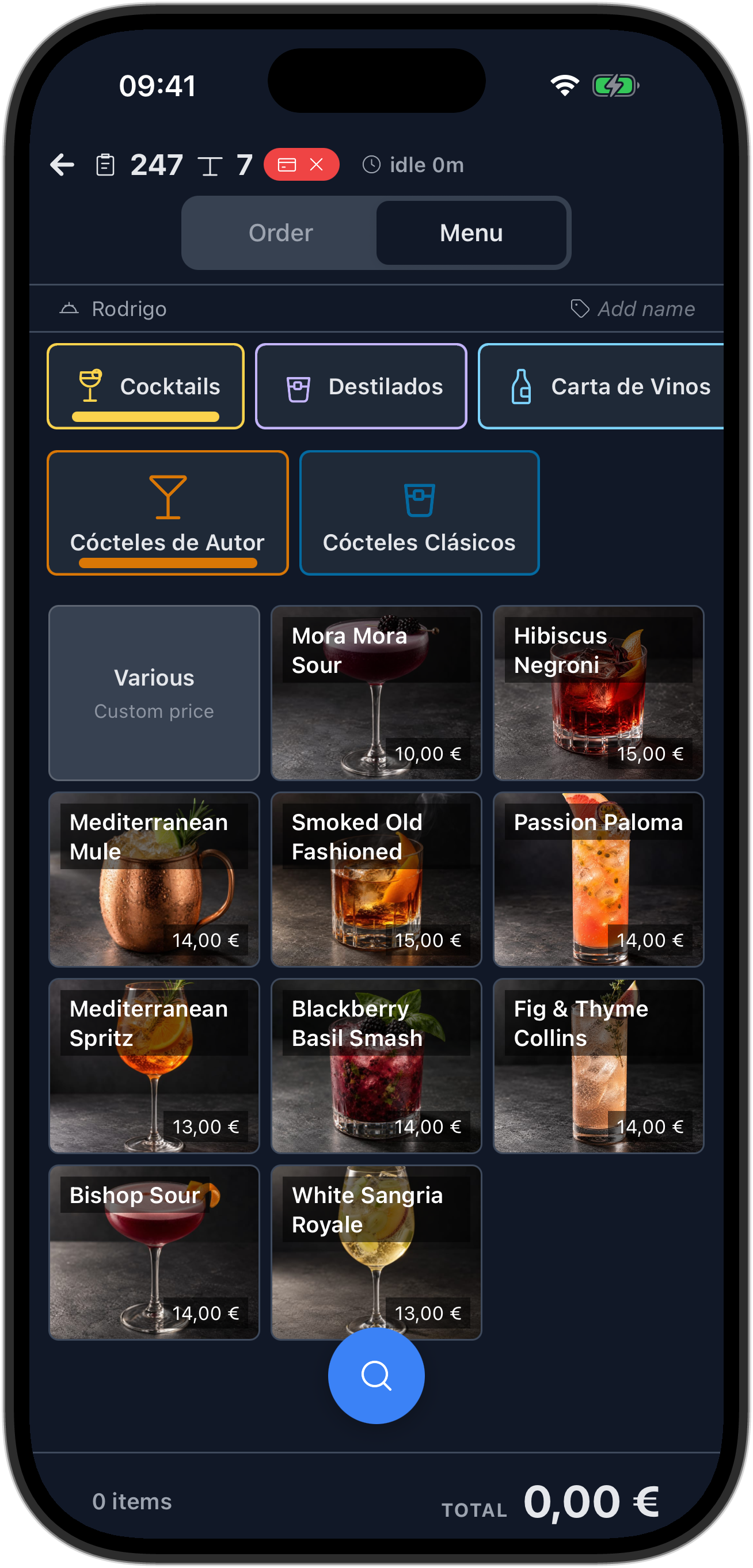
The one difference is the order screen. A tablet shows the check and the menu side by side. A phone has less room, so it puts them on two tabs.
Your restaurant's look
The app is light or dark, and that is set for each location in the back office:
- In the back office, open Settings, then Staff app.
- Under Theme, pick Light or Dark.
- Click Save.
Every device at that location follows it. Your restaurant's logo comes from Settings, then Logo. In the dark theme the app uses the logo you uploaded under Dark background, or the Light background one if there is no dark version. If your restaurant uses Reservations, one device can still differ: on the Reservations screen, the Theme row in the menu switches the whole app on that device between Auto (the location's theme), Light and Dark.
Luna Rossa Pizza Co. uses the light theme; Bishop Wine Studio uses the dark one. The screens below show both.
The PIN screen is where each restaurant's logo and theme show first:
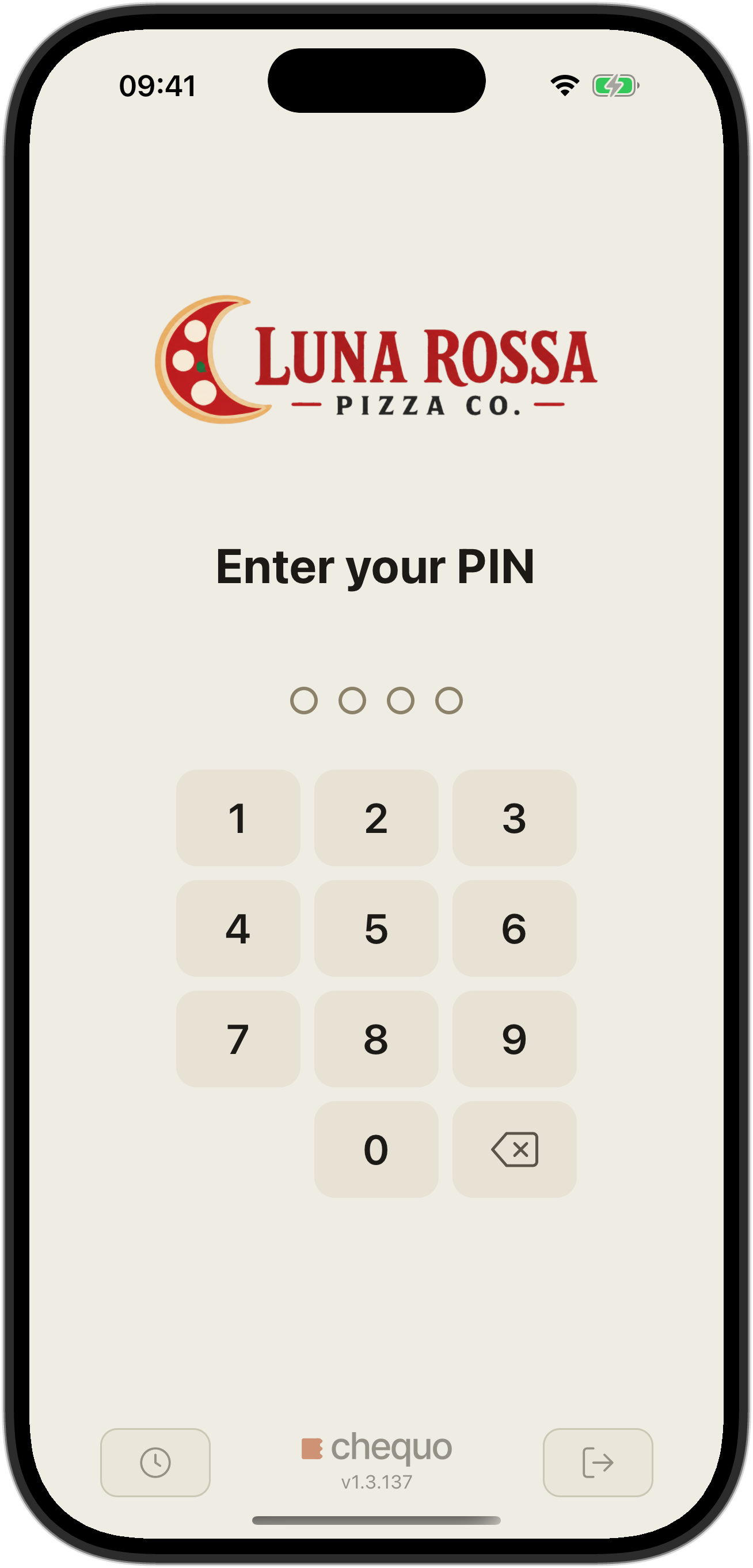
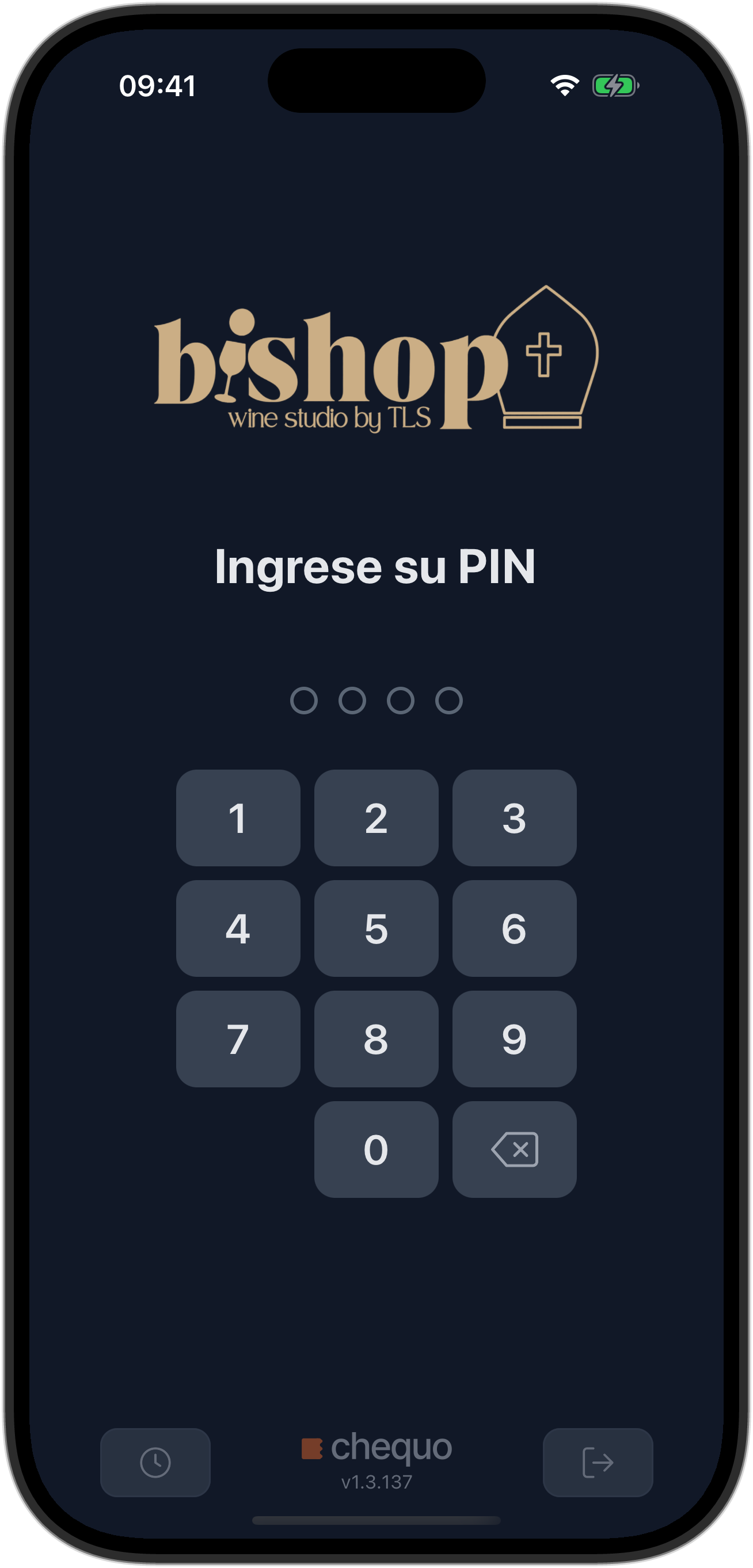
Bishop Wine Studio is in Spain, so its PIN screen is in Spanish. Until someone signs in, the PIN screen always uses the restaurant's language, because everyone shares it. Once you sign in, the app switches to the language you chose for yourself on that device, or stays in the restaurant's language if you haven't chosen one. See Signing in and finding your way around.
On a tablet: check and menu side by side
On a tablet the order screen is split. The check is on the left: its lines, the total, and the buttons to send and pay. The menu is on the right. Tap an item on the right and it appears on the check on the left.
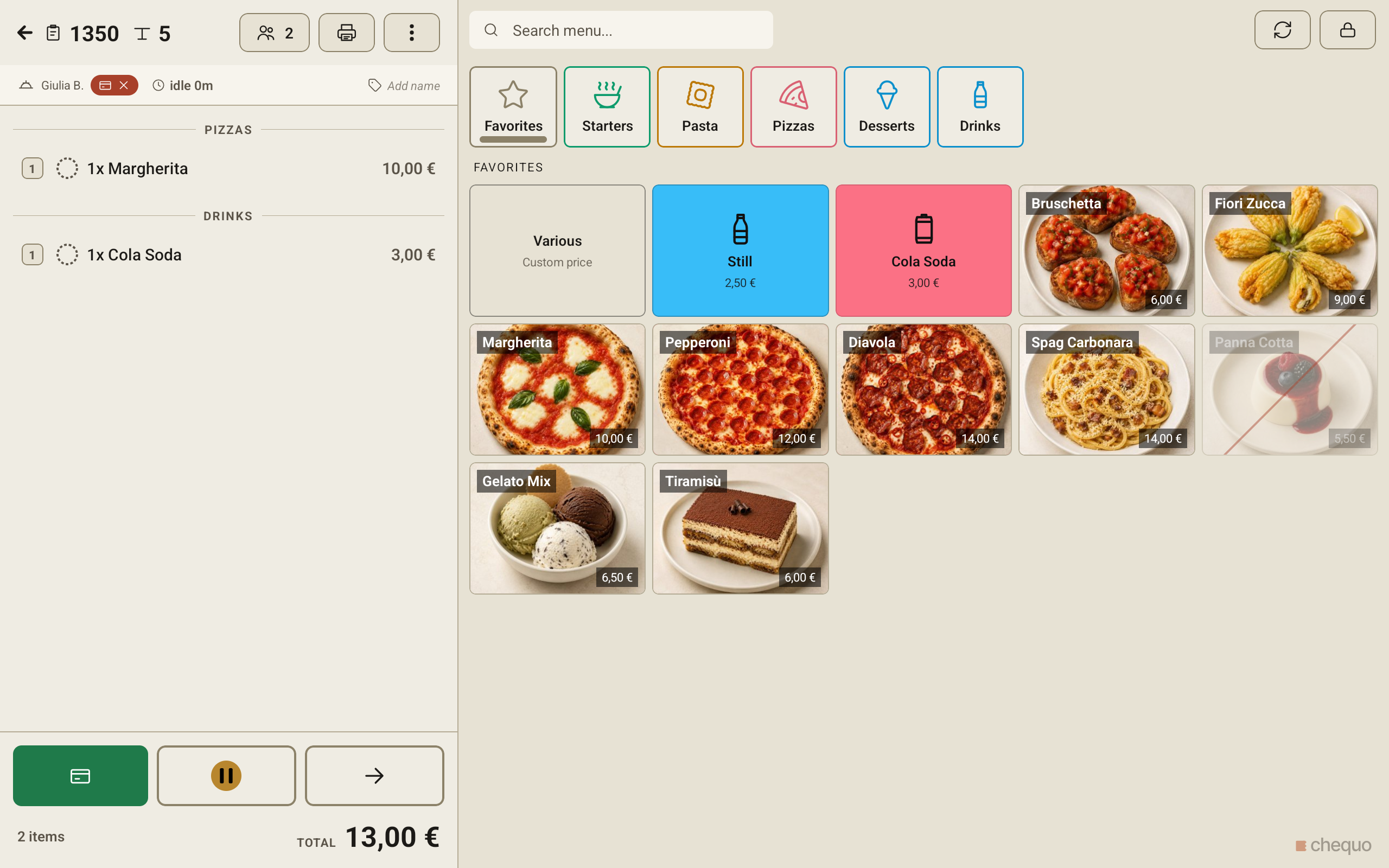
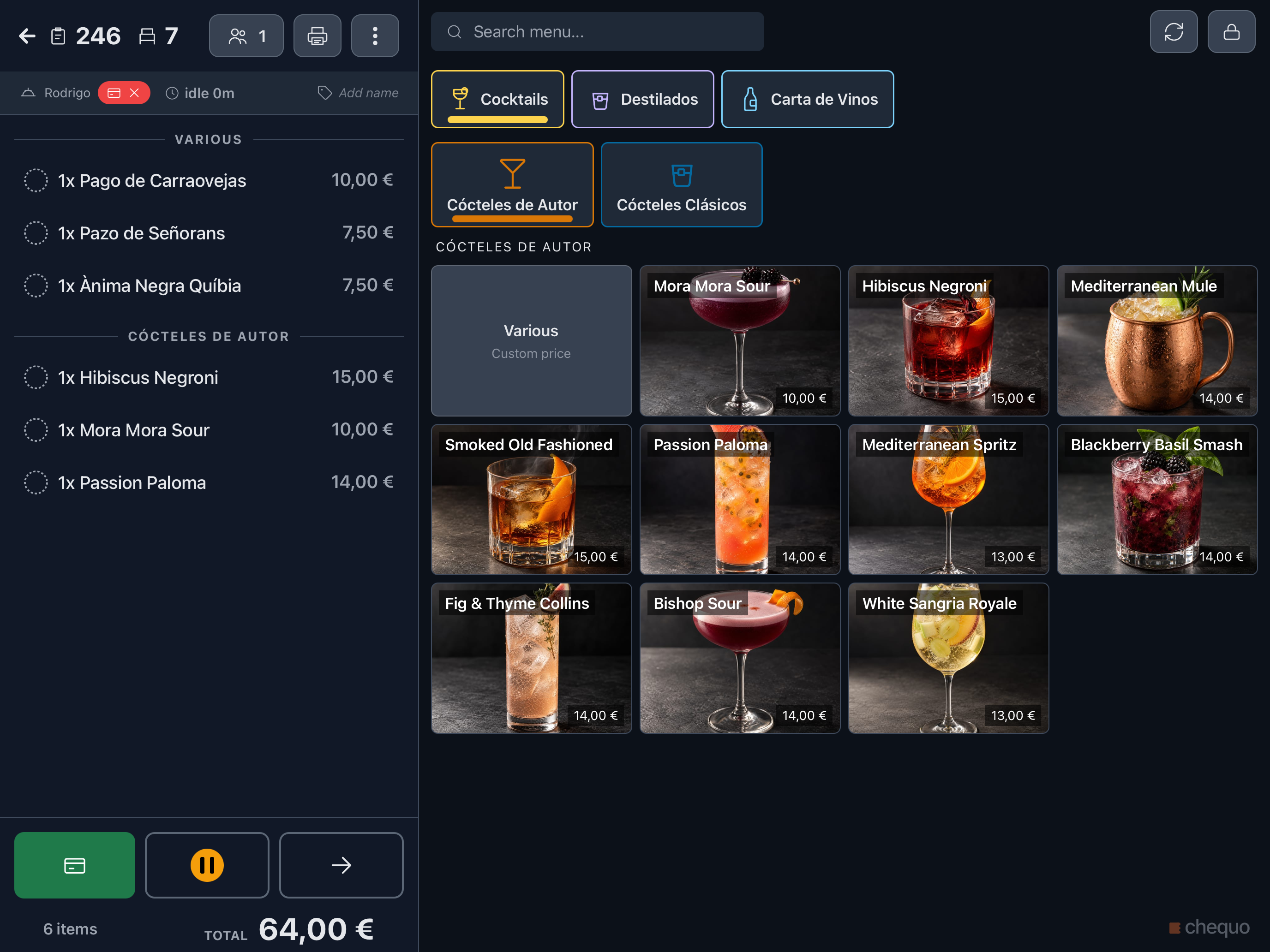
The split screen needs width. If you hold a tablet upright and it is too narrow for both panes, the app shows the phone layout until you turn it back.
For everything you can do on this screen, see Taking an order.
On a phone: Order and Menu tabs
On a phone the same screen has two tabs at the top, Order and Menu.
- Order shows the check: its lines, and the buttons to send and pay.
- Menu shows the menu groups and items.
A new check opens on Menu, so you can start adding straight away. To add an item:
- On Menu, tap the item. It opens with its options, if it has any.
- Pick what you need and tap Add.
- Tap Order to see the item on the check.
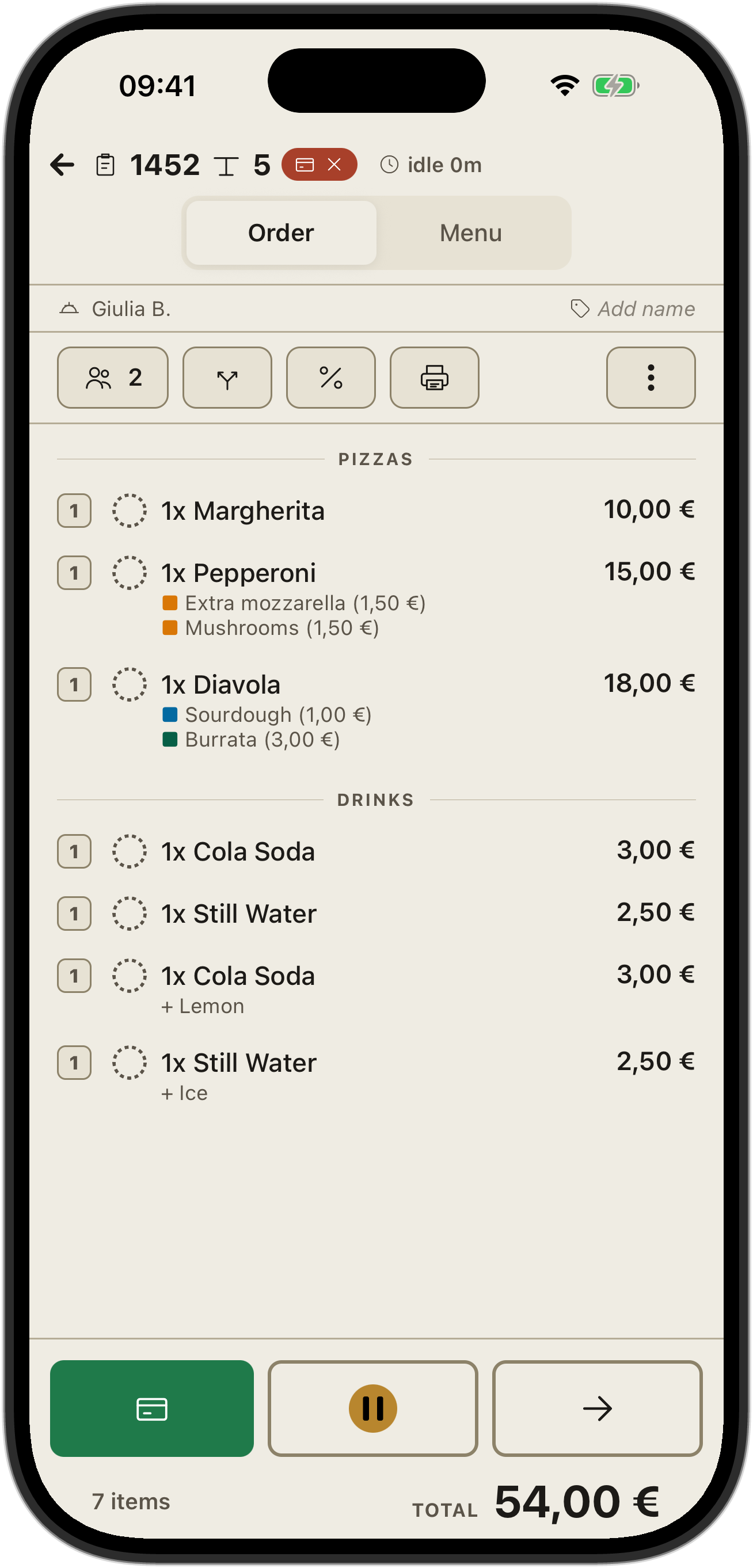
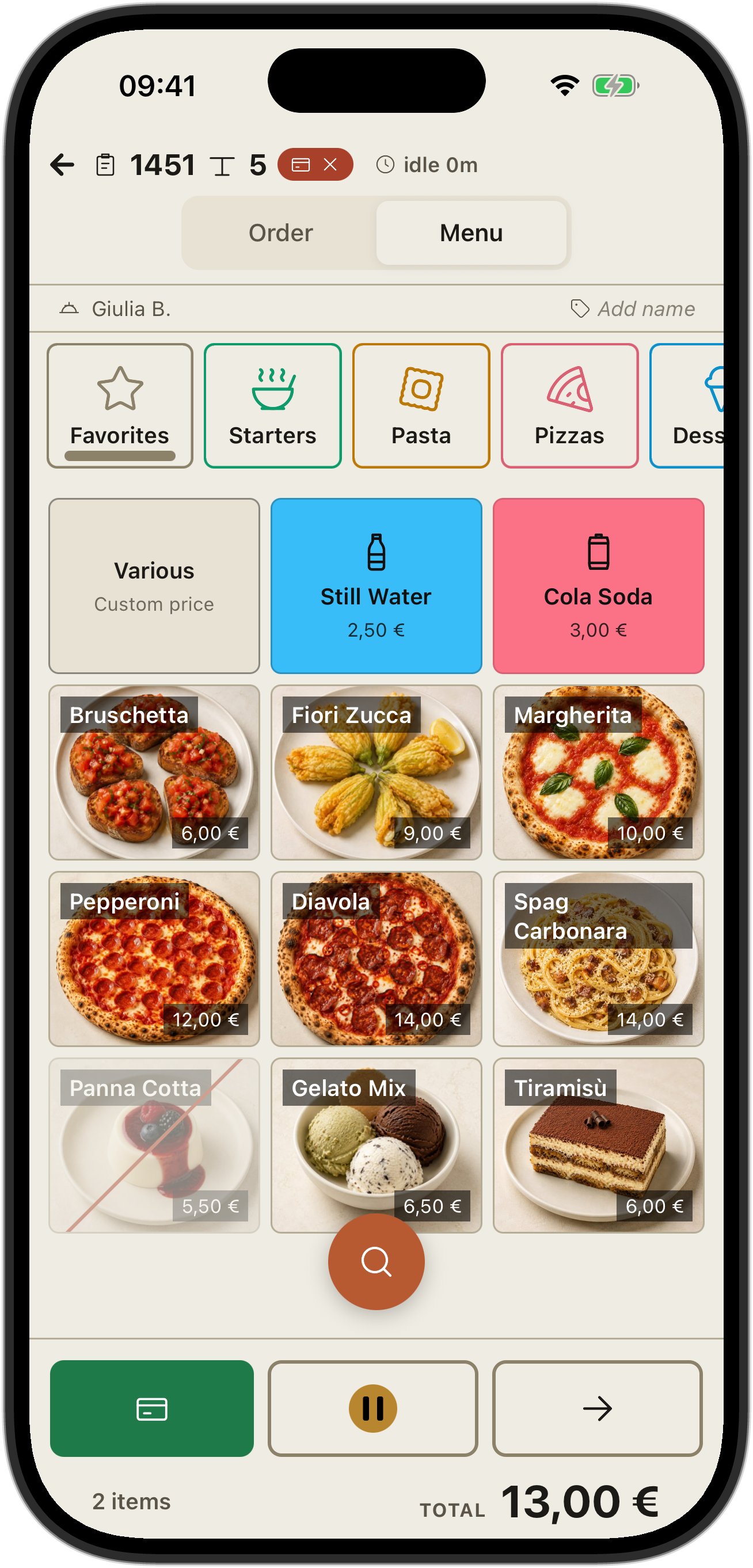
The check's total and the send and pay buttons stay at the bottom on both tabs.