In this document
Send simple items straight out
Some items need no cooking. A dessert comes out of the fridge and goes on the tray, a drink is poured and handed over. With quick actions on, a new ticket can skip IN PROGRESS and go straight to READY, or straight off the board. This guide covers what the buttons do, how to turn them on for a station, and where they do not appear.
What changes on the screen
On a station with quick actions on, every ticket in the NEW column (the NEW tab on a phone) shows three icon buttons in place of the single forward arrow:
- Amber arrow: start preparing. The ticket moves to IN PROGRESS, exactly as the normal arrow does.
- Green fast-forward: mark ready. The ticket jumps straight to READY, skipping IN PROGRESS.
- Green skip-to-end: mark done and clear. The ticket is marked served and leaves the board at once.
Below, a drink ticket before and after the fast-forward button.
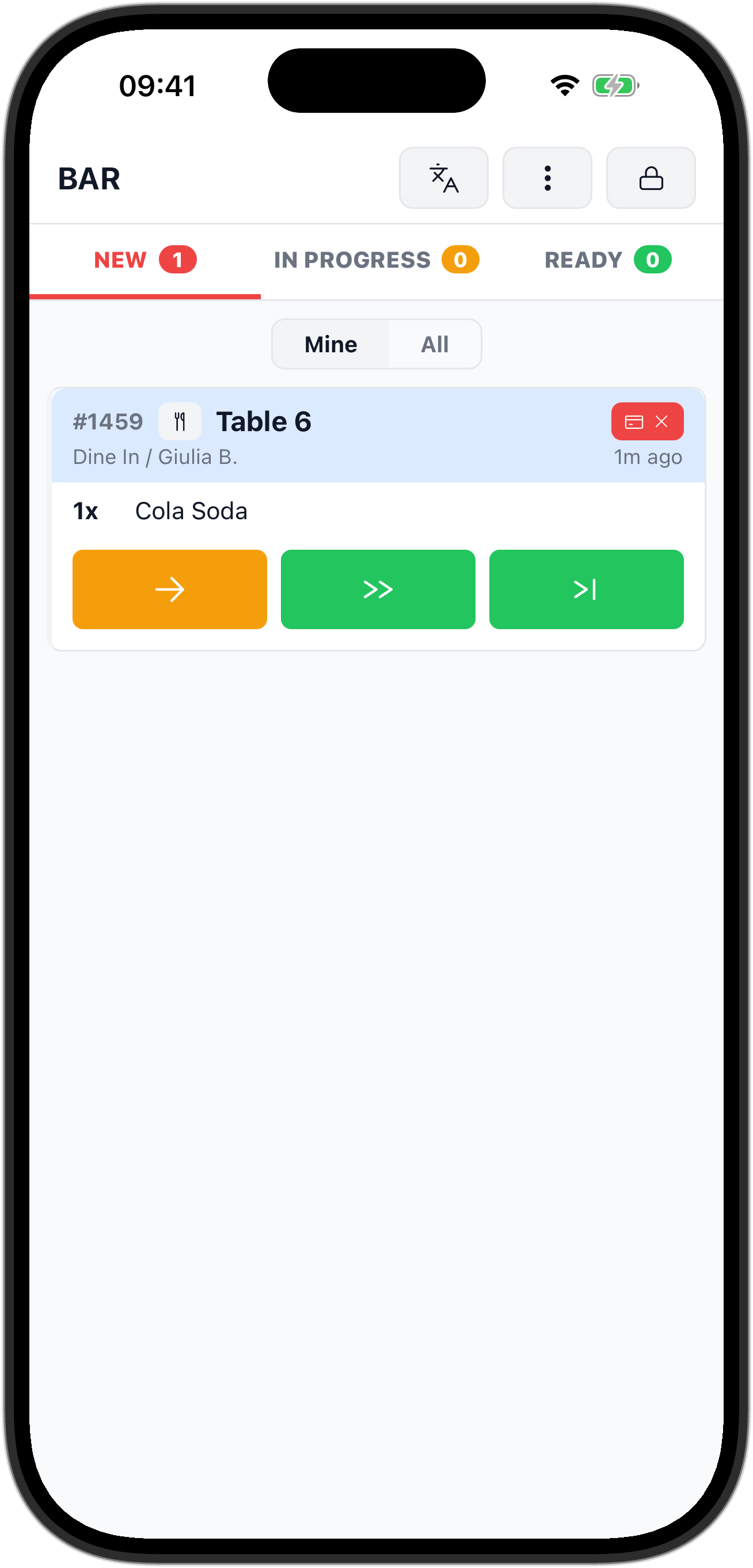
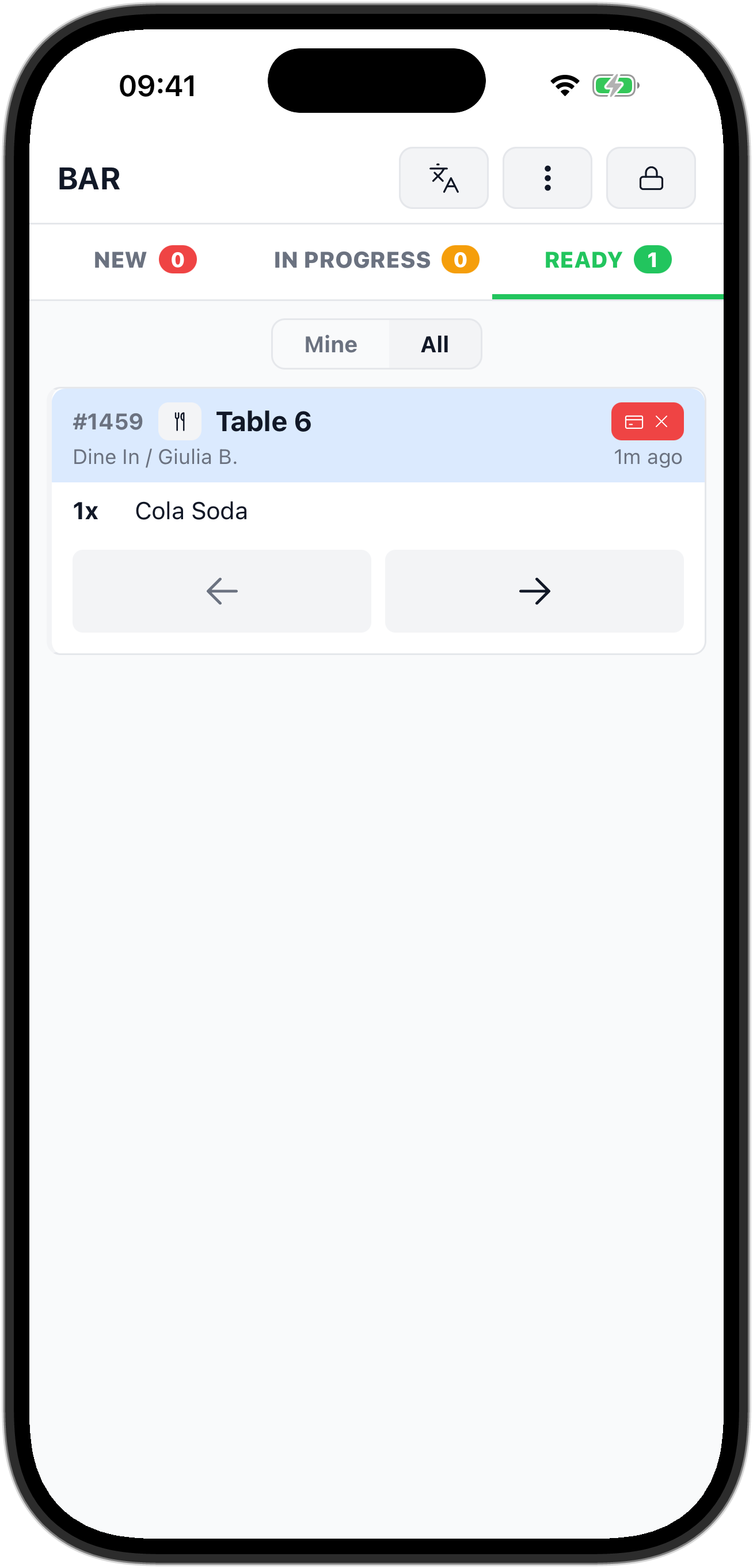
On a Whole order ticket, the button moves every item on the ticket at once. On a Per-item tickets screen, each card is one item, so the button moves that item only.
Once a ticket has left NEW, it goes back to the usual arrows: the forward arrow to advance it, the back arrow to send it back a step.
If the station also lets staff claim tickets, all three buttons claim the ticket for the person signed in on that screen, just like the normal forward arrow. A drink sent straight to READY stays on that bartender's Mine, ready for them to clear once it has gone out. See Share one queue between several people.
Turn quick actions on for a station
Quick actions are a station setting, off by default. You change it in the back office.
- In the back office, open Stations in the left-hand menu.
- Click the station, for example your bar.
- In the Station details card, turn on Quick actions in the New column.
- Click Save.
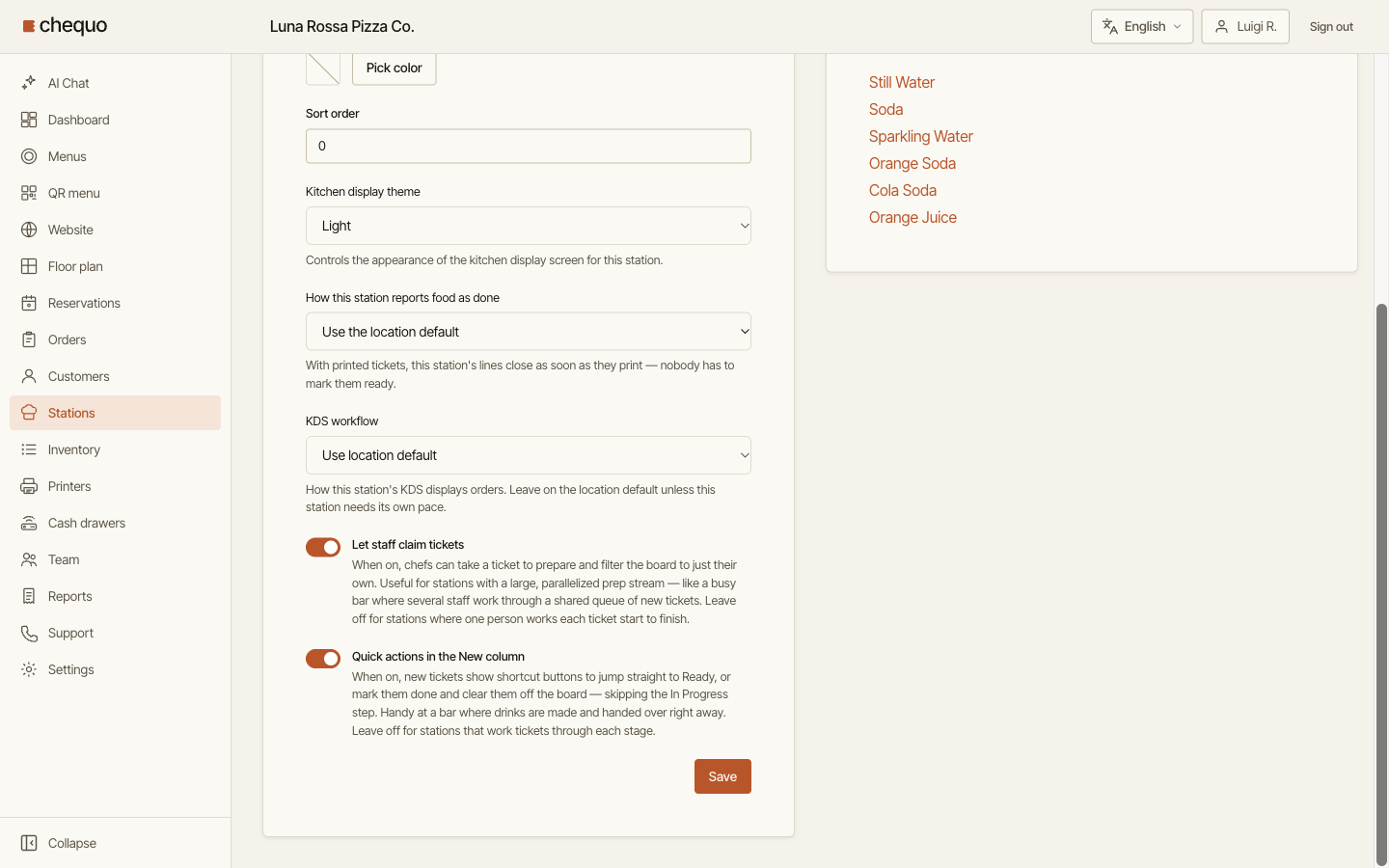
Every screen that displays that station picks up the change within about half a minute. No one has to sign out.
Where quick actions do not appear
- Screens showing all stations. A screen set to All stations never shows quick actions, even if every station has them on. Set the screen to the one station instead: open the ⋮ menu, tap Stations and choose it.
- Item fulfillment mode. Quick actions work in the Whole order and Per-item tickets modes only. Item fulfillment has no columns to skip. See Choose how tickets appear.
- Outside NEW. Tickets in IN PROGRESS and READY keep the normal arrows.
Leave quick actions off for stations where every ticket is cooked through each stage. One mistaken tap on the skip-to-end button takes a ticket off the board.